> ## Documentation Index
> Fetch the complete documentation index at: https://checkly-422f444a-agent-clarify-maintenance-uptime-docs.mintlify.site/llms.txt
> Use this file to discover all available pages before exploring further.
# Send Alerts via Telegram
> Learn how to send Checkly alerts to Telegram direct chats, groups, and forum topics
Checkly integrates with [Telegram](https://telegram.org/) and can
deliver failure, degradation, and recovery messages to direct chats, groups, and forum topics. You can add as many Telegram chats as you wish.
* A Telegram bot and its HTTP API token
* The Chat ID for the direct chat, group, or channel that should receive alerts
* Optional: the Message Thread ID for a specific Telegram forum topic
## Telegram Bot
1. Create a **Telegram Bot** using the [@BotFather](https://t.me/botfather). Detailed instructions can be found [here](https://core.telegram.org/bots), however you can simply message the Telegram user `@BotFather` and send them the command message `/newbot`. Then follow the instructions the bot replies with.
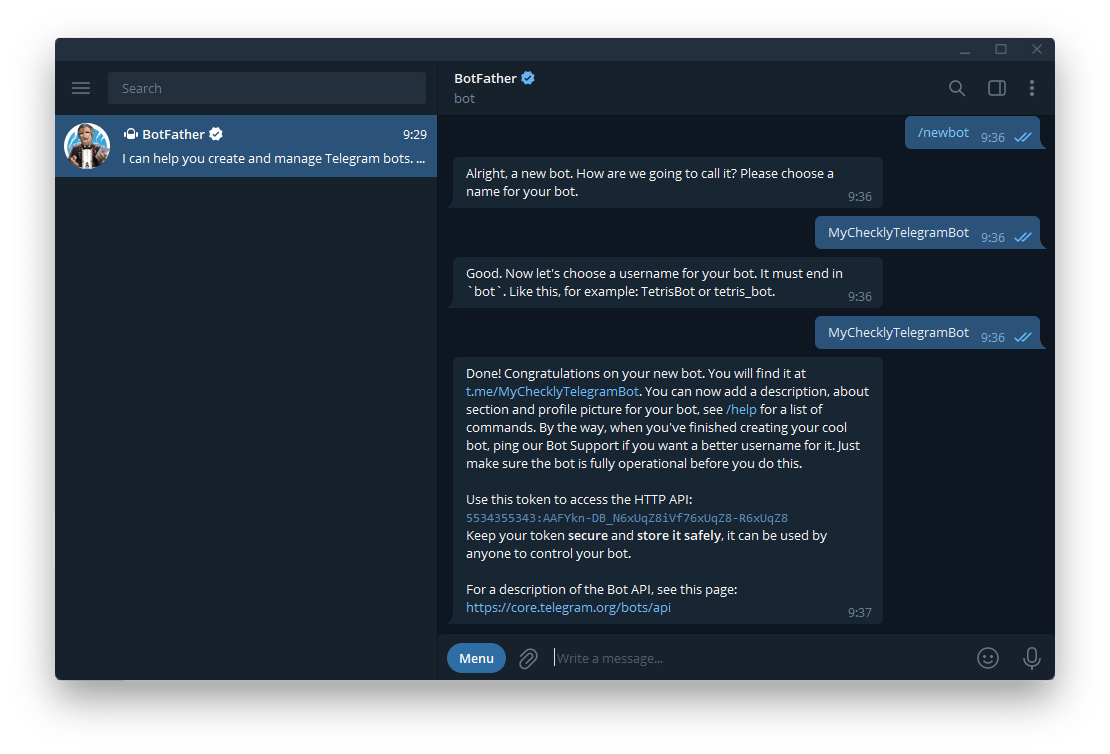 2. As the last step of creating your new bot, the BotFather should reply with a message congratulating you that everything is complete and include a new HTTP API Token for you to use. Alternatively, if you want to reuse an existing Telegram bot you can message the BotFather with the command message `/token` and they will generate a new token. **Make sure to copy this token value out as we'll be using it in the Checkly setup later.**
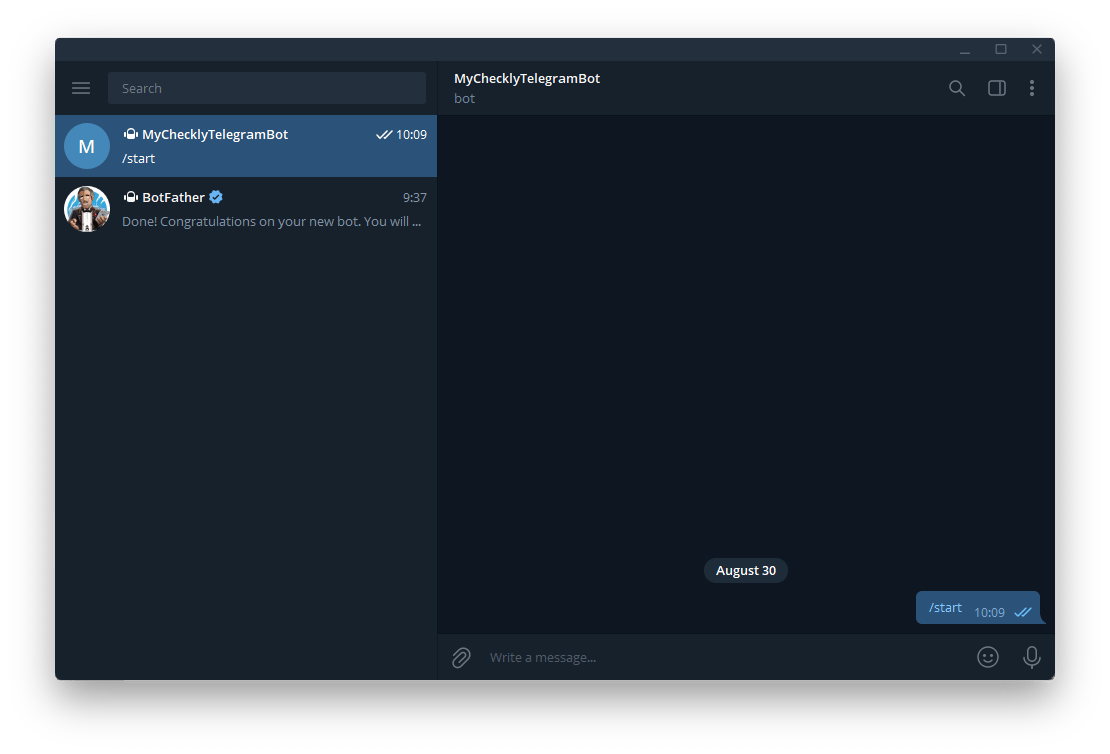
3. Start your new Telegram bot by opening a chat with it. You can use the **START** button in the UI or type the `/start` command message.
2. As the last step of creating your new bot, the BotFather should reply with a message congratulating you that everything is complete and include a new HTTP API Token for you to use. Alternatively, if you want to reuse an existing Telegram bot you can message the BotFather with the command message `/token` and they will generate a new token. **Make sure to copy this token value out as we'll be using it in the Checkly setup later.**
3. Start your new Telegram bot by opening a chat with it. You can use the **START** button in the UI or type the `/start` command message.
 ## Chat ID
For direct messages, you can retrieve your user Chat ID with an ID bot. For groups and forum topics, query the Telegram API to retrieve the target group's Chat ID and optional Message Thread ID.
#### ID Bot
You can retrieve your own Telegram Chat ID by starting a chat with another bot. This Telegram bot user can be found at `@get_id_bot`.
1. Send the `@get_id_bot` bot the `/my_id` command. Copy the ID from its reply.
#### API Query
Use the bot API to retrieve a Chat ID for any target chat. For a forum group, the same response includes the Message Thread ID, which Telegram also calls the topic ID.
1. Add your bot to the target chat or group. If you want alerts in a specific forum topic, send the bot a command from that topic.
2. In a browser, open `https://api.telegram.org/bot/getUpdates`, replacing `` with your bot's API token.
## Chat ID
For direct messages, you can retrieve your user Chat ID with an ID bot. For groups and forum topics, query the Telegram API to retrieve the target group's Chat ID and optional Message Thread ID.
#### ID Bot
You can retrieve your own Telegram Chat ID by starting a chat with another bot. This Telegram bot user can be found at `@get_id_bot`.
1. Send the `@get_id_bot` bot the `/my_id` command. Copy the ID from its reply.
#### API Query
Use the bot API to retrieve a Chat ID for any target chat. For a forum group, the same response includes the Message Thread ID, which Telegram also calls the topic ID.
1. Add your bot to the target chat or group. If you want alerts in a specific forum topic, send the bot a command from that topic.
2. In a browser, open `https://api.telegram.org/bot/getUpdates`, replacing `` with your bot's API token.
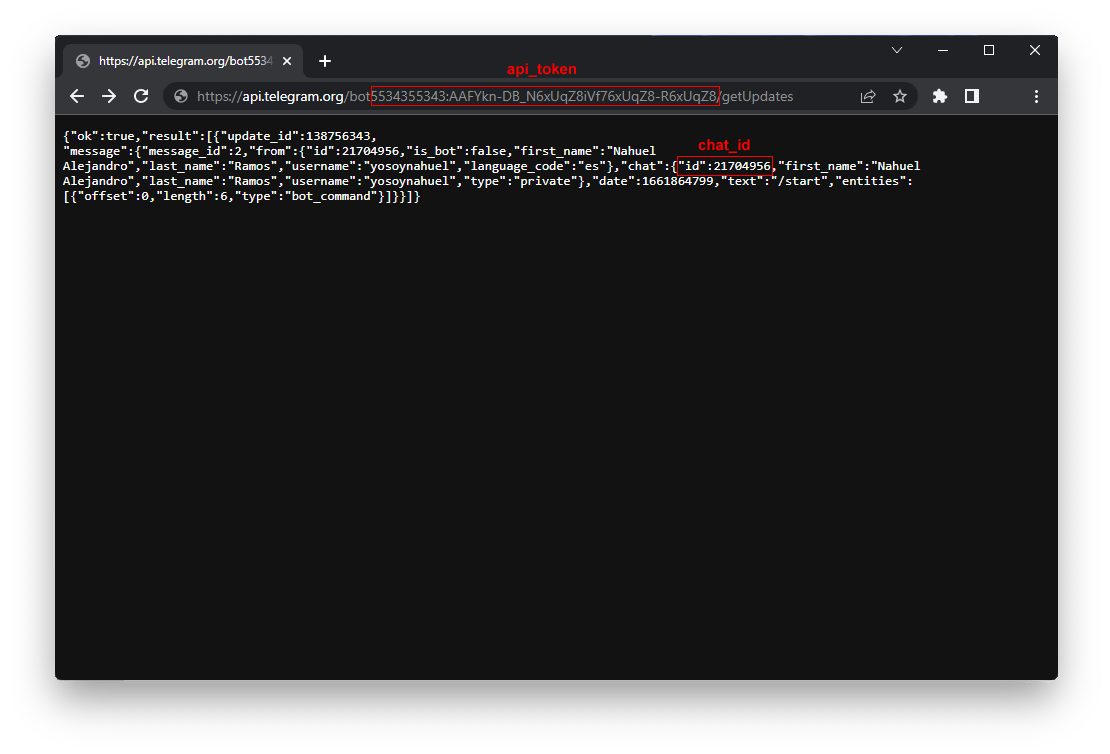 3. Find the message in the `result` array and copy these values:
* `message.chat.id`: the Chat ID
* `message.message_thread_id`: the optional Message Thread ID for the forum topic
The relevant fields look like this:
```json Telegram update theme={null}
{
"message": {
"message_thread_id": 42,
"chat": {
"id": -1001234567890,
"type": "supergroup",
"is_forum": true
}
}
}
```
The `getUpdates` method does not work while your bot has an outgoing webhook configured. In that case, retrieve these fields from the update sent to your webhook.
## Checkly Integration
With the **HTTP API Token**, **Chat ID**, and optional **Message Thread ID** in hand, you can create a Telegram alert channel in Checkly.
1. Log in to Checkly and navigate to [Alert Settings](https://app.checklyhq.com/alert-settings/).
Click the "Add more channels" button, find Telegram on the list, and click "Add channel".
3. Find the message in the `result` array and copy these values:
* `message.chat.id`: the Chat ID
* `message.message_thread_id`: the optional Message Thread ID for the forum topic
The relevant fields look like this:
```json Telegram update theme={null}
{
"message": {
"message_thread_id": 42,
"chat": {
"id": -1001234567890,
"type": "supergroup",
"is_forum": true
}
}
}
```
The `getUpdates` method does not work while your bot has an outgoing webhook configured. In that case, retrieve these fields from the update sent to your webhook.
## Checkly Integration
With the **HTTP API Token**, **Chat ID**, and optional **Message Thread ID** in hand, you can create a Telegram alert channel in Checkly.
1. Log in to Checkly and navigate to [Alert Settings](https://app.checklyhq.com/alert-settings/).
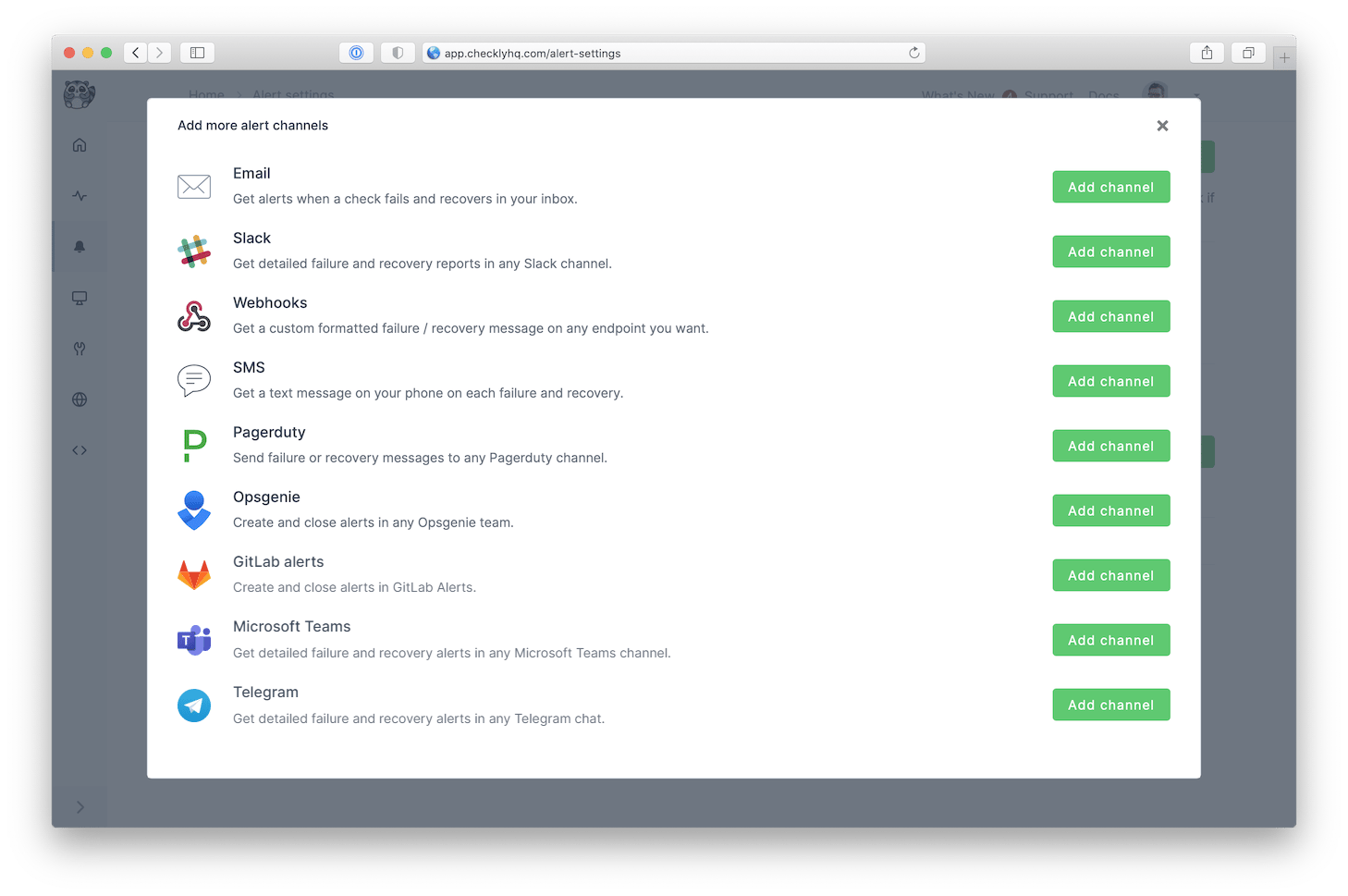
Click the "Add more channels" button, find Telegram on the list, and click "Add channel".
 2. Give the alert channel a name and paste the API Token and Chat ID into the dedicated fields. To send alerts to a specific forum topic, also paste its topic ID into **Message Thread ID**. You can then choose which alerts you want to receive and which checks or check groups should trigger this channel.
Note that we provide a preconfigured message payload, but you may want to edit the payload to modify the Telegram alert message contents. Such as by adding more variables or changing existing variables. Click the "Edit payload" button and reference the "Help & variables" tab.
Congratulations! You have successfully integrated Checkly with Telegram!
## Alternatives
Telegram also accepts messages via an HTTP `GET` request. Therefore, you can use the API Token and Chat ID to create a custom Telegram alert channel with a [webhook alert channel](/integrations/alerts/webhooks). The webhook should use the `GET` method and target `https://api.telegram.org/bot/sendMessage?chat_id=&text=Your%20Alert%20Title`. To target a forum topic, add `&message_thread_id=` before the `text` parameter. See Telegram's [`sendMessage` documentation](https://core.telegram.org/bots/api#sendmessage) for more information.
## Telegram Best Practices
### Group vs Direct Messages
* **Direct Messages**: Use your personal chat ID for personal notifications
* **Group Chats**: Add the bot to group chats and use the group's Chat ID for team notifications
* **Forum Topics**: Use the group's Chat ID together with the topic's Message Thread ID
* **Channels**: Bots can post to channels if added as administrators
### Message Formatting
Telegram supports basic formatting in messages:
```text theme={null}
*Check {{CHECK_NAME}} has failed*
Location: {{RUN_LOCATION}}
Response Time: {{RESPONSE_TIME}}ms
Started: {{STARTED_AT}}
Error: {{CHECK_ERROR_MESSAGE}}
[View Details]({{RESULT_LINK}})
```
### Security Considerations
* **Bot Token Security**: Keep your bot tokens secure and never share them publicly
* **Chat ID Privacy**: Chat IDs can be sensitive information, especially for private groups
* **Bot Permissions**: Only give your bot the minimum necessary permissions in group chats
2. Give the alert channel a name and paste the API Token and Chat ID into the dedicated fields. To send alerts to a specific forum topic, also paste its topic ID into **Message Thread ID**. You can then choose which alerts you want to receive and which checks or check groups should trigger this channel.
Note that we provide a preconfigured message payload, but you may want to edit the payload to modify the Telegram alert message contents. Such as by adding more variables or changing existing variables. Click the "Edit payload" button and reference the "Help & variables" tab.
Congratulations! You have successfully integrated Checkly with Telegram!
## Alternatives
Telegram also accepts messages via an HTTP `GET` request. Therefore, you can use the API Token and Chat ID to create a custom Telegram alert channel with a [webhook alert channel](/integrations/alerts/webhooks). The webhook should use the `GET` method and target `https://api.telegram.org/bot/sendMessage?chat_id=&text=Your%20Alert%20Title`. To target a forum topic, add `&message_thread_id=` before the `text` parameter. See Telegram's [`sendMessage` documentation](https://core.telegram.org/bots/api#sendmessage) for more information.
## Telegram Best Practices
### Group vs Direct Messages
* **Direct Messages**: Use your personal chat ID for personal notifications
* **Group Chats**: Add the bot to group chats and use the group's Chat ID for team notifications
* **Forum Topics**: Use the group's Chat ID together with the topic's Message Thread ID
* **Channels**: Bots can post to channels if added as administrators
### Message Formatting
Telegram supports basic formatting in messages:
```text theme={null}
*Check {{CHECK_NAME}} has failed*
Location: {{RUN_LOCATION}}
Response Time: {{RESPONSE_TIME}}ms
Started: {{STARTED_AT}}
Error: {{CHECK_ERROR_MESSAGE}}
[View Details]({{RESULT_LINK}})
```
### Security Considerations
* **Bot Token Security**: Keep your bot tokens secure and never share them publicly
* **Chat ID Privacy**: Chat IDs can be sensitive information, especially for private groups
* **Bot Permissions**: Only give your bot the minimum necessary permissions in group chats